How to set up your Sims 4 mods folder (beginners guide)
Whenever EA release a Sims 4 update, you’ll see people worrying about broken mods and corrupted saves. That can feel scary, especially if you’re new to modding. This guide walks you through a simple, safe way to set up your Mods folder on Windows so updates feel less stressful
In this post, you’ll learn:
What mods and CC are, in plain language
Where to find your Mods folder
How to set up a simple, beginner‑friendly folder structure
Disclaimer: This guide is for Windows players. Mac instructions are slightly different
What are mods and CC?
Mods are files that change how the game behaves. They might add new features, fix annoyances, or change the user interface.
CC (custom content) are files that add things you can see, like new hair, clothes, furniture, or wallpapers.
Both mods and CC are usually small files you download from creators. You then place them in your Mods folder so the game can read them.
Where is my Mods folder?
On Windows, the default path is:
C:\Users\[Your Username]\Documents\Electronic Arts\The Sims 4\Mods
If you have never used mods before, The Sims 4 will create a Mods folder after you open the game once and enable mods in Game Options.
Script mods vs package files (without the jargon)
When you download content, you’ll usually see one or both of these file types:
.ts4script files – these are script mods. They change how the game works or how the interface behaves.
.package files – these are CC or small tuning changes. They change what you see in game (objects, clothing, textures, or how something looks).[page:1]
Both of these belong in your Mods folder. You may also get extra files such as:
.txt – usually the creator’s instructions or notes
.png / .jpg / .jpeg – preview images of the item
Those extra files are not used by the game. I usually delete them once I’ve read any instructions.
Step 1 – Turn on mods in‑game
Before your files will work, you need to allow mods inside The Sims 4:
Open The Sims 4.
Go to Options → Game Options → Other.
Tick Enable Custom Content and Mods.
Tick Script Mods Allowed.
Apply changes and restart the game.[page:1]
Now your game is ready to read files from your Mods folder.
Step 2 – Set up priority folders by creator
Now that mods are enabled, you can set up your Mods folder in a way that will save you a lot of time every time EA update the game. Instead of one big pile of files, we’ll group your most important mods by how crucial they are to your game and by who made them.
The idea is simple:
The lower the number, the more important the mod is for your game.
Each creator gets their own folder.
So inside your Mods folder, create folders like:
01 – [creator name]
02 – [creator name]
You don’t need to fill all of these straight away. Start with 00 folders for the creators whose mods you really don’t want to play without.
When you download a script mod (a .ts4script file) or a core gameplay mod from a creator, put it in that creator’s numbered folder. For example:
Mods\00 – Deaderpool
Mods\00 – Lot 51
Mods\00 – TwistedMexi
Keeping these close to the top level of the Mods folder makes them easier for the game to read and much easier for you to update when something breaks after a patch.
Step 3 – High‑priority mods I recommend
Some mods act as core tools that other mods rely on, or that make managing your game much easier. These are high‑priority for me, and I recommend putting them straight into 00 –
Lot 51 Core Library – a framework other Lot 51 mods use.
XML Injector – lets certain mods add game features without editing core files.
MC Command Centre (by Deaderpool) – a powerful menu‑based mod that gives you more control over your game.
UI Cheats Extension– lets you click directly on the user interface to change things, instead of typing cheats.
TwistedMexi’s tools – such as Better Exceptions, Better BuildBuy, and T.O.O.L, which add powerful building and debugging options.
Place each downloaded mod into its corresponding folder you made using the 00 prefix convention.
Over time, you can also use 01, 02, and so on for mods that are less critical but still important to you. In Post 2, I’ll go into more detail on how I rank these and how I store all my other CC around this system.
Step 4 – One creator = one folder
Even as a beginner, it’s worth getting into the habit of saving by creator name. It looks like this:
Mods\00 – Deaderpool\MC Command Centre files
Mods\00 – Lot 51\Core Library files
Mods\00 – TwistedMexi\Better Exceptions and tools
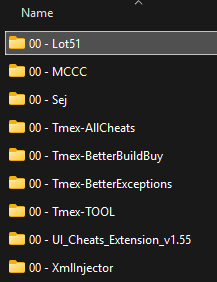
This is an example of my 00 prioritised subfolder system
Later, when you add CAS and Build/Buy CC, you can keep doing the same thing:
Mods\09 – BuildBuy\Felixandre
Mods\09 – CAS\CreatorName
Saving by creator makes it much easier to:
Update a mod when the creator releases a new version.
Remove a creator’s content temporarily if it’s causing problems after an update.
Avoid duplicates, because your computer will warn you when you drop a file into an existing creator folder.
Step 5 – Test with a throwaway save
Before loading a favourite save:
Launch the game.
Create a new test save (for example, “Mods Test”).
Check that the game loads without errors and that new content appears as expected.
If something seems broken, remove the last mod you added, restart the game, and test again. This keeps your main saves safer while you are still learning how mods work.
Optional: install PlumbBuddy as a safety net
If you want extra help keeping things safe, I recommend installing PlumbBuddy. It’s a free companion app for The Sims 4 that:
Monitors your mods setup for common issues.
Helps check for modupdates and backs up your saves.
Can automatically disable script mods if you launch the game right after an EA update, which gives creators time to fix their mods.
PlumbBuddy isn’t required to use mods, but it adds an extra layer of protection which is especially useful when you’re just starting out.
In the next post, we’ll build on this setup by looking at where to put all your CAS, Build/Buy, and override files so they fit neatly into the same numbered system and stay easy to update after each game patch.